
 Gridbox Pro
Installing and updating Gridbox Pro
Mac
Download the file from the download page, open it, and drag Gridbox Pro into your Applications folder. The first time you open it, your Mac asks you to confirm it. Open System Settings, go to Privacy & Security, and click Open Anyway at the bottom. You'll only need to do that once.
Windows
Download the installer and run it. If Windows shows a SmartScreen message, click More info and then Run anyway, and Gridbox Pro will show up in your Start menu.
The first time you open it
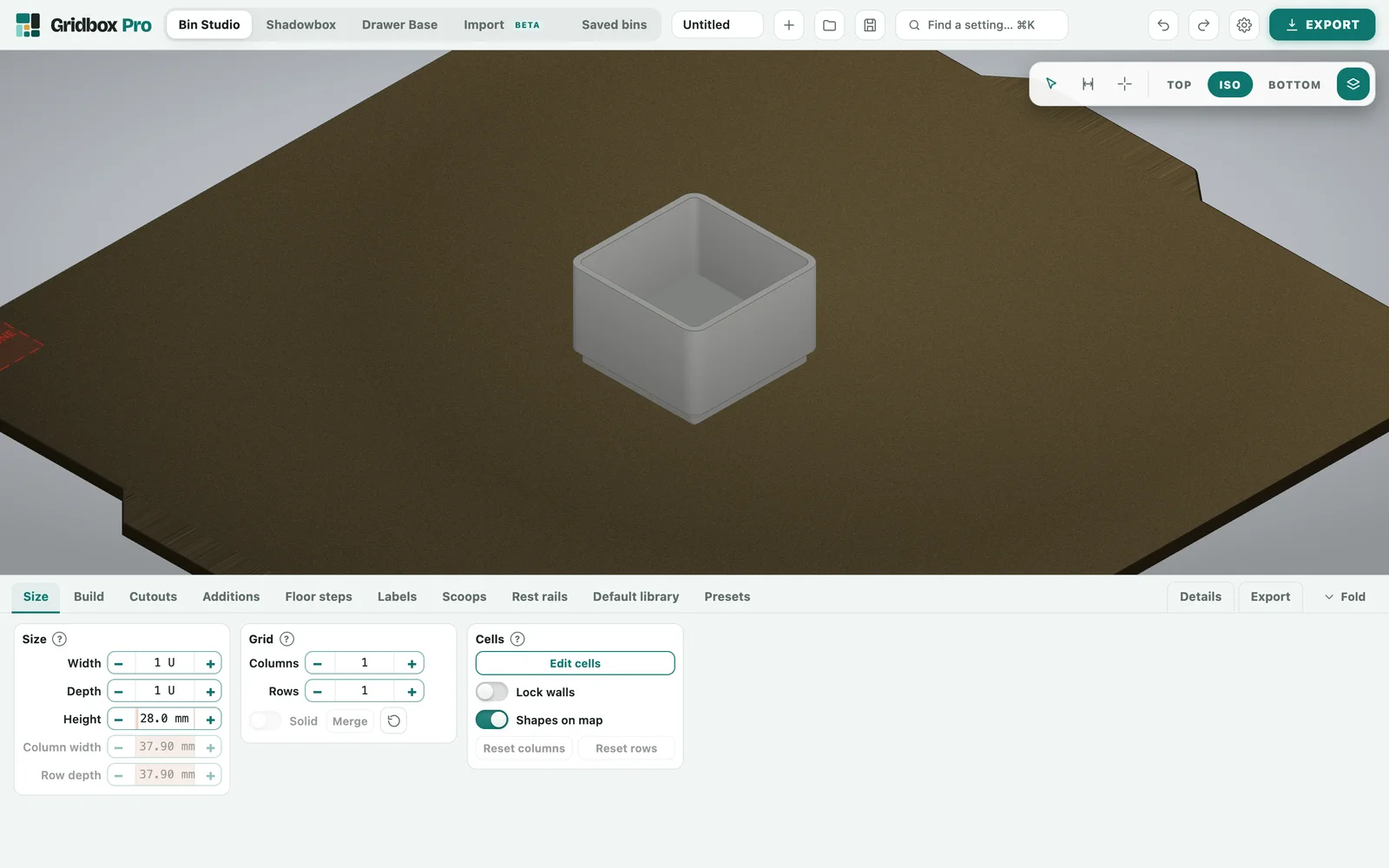
Gridbox Pro opens ready to design, with the 3D view on top and the menu below it, and nothing asks you to sign in. Designing is free, and saving files out of the app, like the files for your printer, needs a license.
Updates
Click Check for updates in Settings, and Gridbox Pro downloads the new version and installs it in place, so you only download it once. Every update is listed on the changelog.